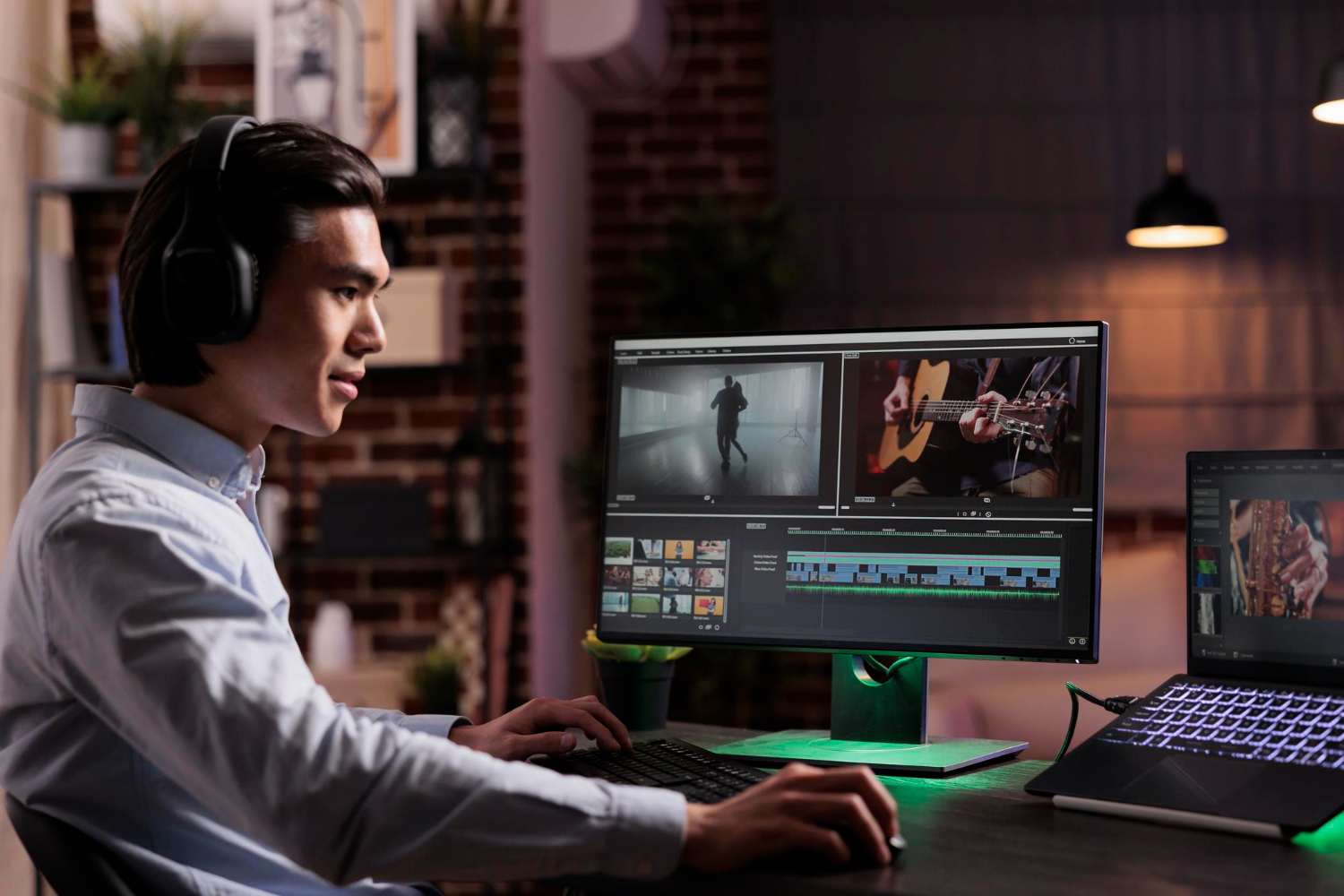
Video editing has become an essential skill for creators, businesses, and anyone who wants to communicate visually in the digital world. Whether you’re producing content for YouTube, social media, or a professional project, the quality of your editing often determines how viewers experience your message. Good editing doesn’t just make a video look polished—it helps shape the story, clarify the purpose, and keep the audience engaged from start to finish.
As editing tools evolve and new trends emerge, understanding the fundamentals can make a noticeable difference in your work. From organizing your footage to choosing the right pacing, small improvements can dramatically improve the final output. This guide brings together practical, experience-based video editing tips designed to help you work smarter, stay consistent, and produce videos that viewers enjoy watching.
25 Best Video Editing Tips
1. Plan Your Edit Before Starting
Before diving into any video editing software, it’s crucial to plan your edit carefully. Planning gives your project direction and helps avoid wasting time on unnecessary adjustments later. Start by defining the purpose of your video: Are you educating, entertaining, or promoting a product? Knowing your goal will guide how you structure your shots, pacing, and overall flow.
Creating a storyboard or a simple shot list can be extremely helpful. This doesn’t have to be complicated—a rough sketch or a bullet-point outline of the scenes can provide a clear roadmap. Planning also includes understanding the type of footage you need, the sequence of events, and any additional elements like text overlays, graphics, or music. By taking the time to plan, you can ensure your editing process is more organized, efficient, and focused, which ultimately leads to a polished final product that effectively communicates your message.
2. Organize All Media Files Properly
One of the most overlooked steps in video editing is organizing your media files before you begin editing. Disorganized files can slow you down, cause frustration, and even lead to mistakes like using the wrong footage or losing important clips. Start by creating a clear folder structure on your computer or editing drive. For example, separate folders for raw footage, audio, images, graphics, and music can make locating files much faster.
Renaming files with descriptive titles is also highly effective. Instead of generic names like “clip001.mp4,” use names that describe the content, such as “interview_intro.mp4” or “b-roll_cityscape.mp4.” Additionally, consider adding tags or metadata if your editing software supports it. This makes searching for specific clips easier, especially for larger projects. By keeping your files organized from the start, you’ll spend less time hunting for assets and more time focusing on creative editing decisions, which ultimately improves workflow efficiency and video quality.
3. Use the Right Video Editing Software
Choosing the right video editing software is a critical step in creating professional-quality content. The software you select affects your workflow, the tools available, and the overall efficiency of your editing process. Beginners may prefer user-friendly options like iMovie or Filmora, which offer intuitive interfaces and essential editing features without overwhelming complexity. For more advanced users, professional software like Adobe Premiere Pro, Final Cut Pro, or DaVinci Resolve provides advanced color grading, effects, and precise editing controls.
When selecting software, consider your project requirements and future growth. Some programs are better suited for short social media videos, while others excel in producing long-form content or cinematic projects. Also, check compatibility with your computer hardware to ensure smooth performance. Using software that aligns with your skill level and project needs allows you to work efficiently, experiment creatively, and achieve high-quality results without unnecessary technical frustrations.
4. Learn Keyboard Shortcuts
Mastering keyboard shortcuts is one of the simplest yet most effective ways to speed up your video editing workflow. Editing software often includes dozens of shortcuts for tasks like cutting, trimming, zooming, and navigating the timeline. Using shortcuts reduces the time spent searching through menus, allowing you to focus more on creativity and storytelling rather than repetitive actions.
Start by learning the most commonly used shortcuts in your software, such as cutting clips, undoing actions, and moving clips on the timeline. Once these become second nature, you can gradually incorporate more advanced shortcuts for color correction, audio adjustments, or applying effects. Many editors find that investing time in learning shortcuts pays off significantly, especially when working on larger projects. Over time, these small efficiency gains add up, letting you edit faster while maintaining precision and control over every element of your video.
5. Create a Rough Cut First
Creating a rough cut is an essential step in the video editing process. A rough cut involves assembling all your clips in the correct sequence without worrying about fine details like transitions, color grading, or audio polishing. This step allows you to see the overall flow of your video and ensures that your story makes sense before investing time in precise editing.
During the rough cut, focus on trimming unnecessary footage and arranging scenes to match your storyboard or script. Pay attention to pacing and how each segment connects with the next. It’s also a good opportunity to identify missing shots or additional B-roll that might enhance the narrative. By starting with a rough cut, you save time in the long run and create a solid foundation that makes the final editing stage smoother, more organized, and much more efficient.
6. Remove Unnecessary Footage
One of the most important steps in creating a polished video is trimming out unnecessary footage. Extra clips, long pauses, or repetitive scenes can make your video feel slow, confusing, or unprofessional. By removing these elements, you can maintain a smooth flow that keeps viewers engaged from start to finish.
When reviewing your footage, focus on scenes that add value to your story or message. Ask yourself whether each clip contributes to the overall narrative, supports a point, or enhances visual interest. If it doesn’t, consider cutting it out. This process also includes eliminating awkward pauses, shaky shots, or distracting background elements. Regularly trimming your video not only improves pacing but also strengthens your storytelling, making the final product more engaging and enjoyable for your audience.
7. Keep Transitions Simple and Clean
Transitions are a powerful tool in video editing, but overusing them or making them overly flashy can distract viewers from your content. Simple and clean transitions, such as cuts or fades, often work best for maintaining a professional and polished look. They help guide the viewer smoothly from one scene to the next without drawing attention away from the story.
When applying transitions, think about the mood and pace of your video. Quick cuts can create energy and urgency, while slow fades can add a cinematic or reflective feel. Avoid using multiple complex transitions in succession, as this can make the video feel cluttered and unprofessional. By keeping transitions minimal and purposeful, you enhance the viewer’s experience, maintain visual clarity, and ensure that your story remains the main focus of your video.
8. Match Video Pace With the Story
The pacing of your video plays a crucial role in how viewers experience your content. A video that moves too slowly can feel boring, while one that moves too quickly may confuse the audience. Matching the pace of your edits to the story ensures that each scene has the right amount of time to make an impact and keeps viewers engaged throughout.
Consider the emotion and purpose of each segment when adjusting timing. For example, a dramatic moment may benefit from longer shots and slower cuts, allowing viewers to absorb the scene fully. In contrast, energetic tutorials or action sequences often require quicker cuts to maintain excitement and momentum. Paying attention to pacing also includes the rhythm of dialogue, music, and visual transitions. By thoughtfully matching your video’s pace to the story, you create a cohesive and compelling viewing experience that resonates with your audience.
9. Use Color Correction and Color Grading
Color plays a significant role in setting the mood and visual appeal of your video. Color correction ensures that all clips have consistent exposure, white balance, and color tones, making the video look professional and polished. Without proper color correction, even well-shot footage can appear unbalanced, distracting viewers from the story.
Color grading, on the other hand, is used creatively to establish a particular style or emotion. For example, warm tones can evoke comfort or nostalgia, while cooler tones may convey tension or modernity. Most professional editing software provides tools for adjusting brightness, contrast, saturation, and color curves to achieve the desired effect. Combining color correction with color grading not only enhances visual consistency but also reinforces the story and mood, helping your video make a stronger impression on viewers.
10. Fix Exposure and White Balance
Proper exposure and white balance are fundamental to producing professional-looking videos. Exposure controls the brightness of your footage, ensuring that highlights aren’t too bright and shadows aren’t too dark. Incorrect exposure can make a video look flat or washed out, distracting viewers from the content. Adjusting exposure during editing helps maintain clarity and detail throughout each scene.
White balance ensures that colors appear natural under different lighting conditions. For instance, footage shot under indoor lighting may appear yellowish, while outdoor footage might look too blue. Correcting white balance restores natural colors, making your video look more realistic and visually pleasing. Most video editing software provides simple tools to adjust both exposure and white balance, giving your footage a polished, professional appearance. Paying attention to these details improves overall video quality and enhances viewer engagement.
11. Use High-Quality Audio
High-quality audio is just as important as high-quality visuals in video editing. Poor audio can make even well-shot footage feel amateurish and frustrate viewers. Clear dialogue, balanced background sounds, and minimal noise are essential for keeping your audience engaged and conveying your message effectively.
Whenever possible, use external microphones instead of relying solely on built-in camera audio. During editing, pay attention to audio levels to ensure consistent volume throughout the video. Removing background noise, adjusting equalization, and using compression can significantly improve the overall sound quality. Remember, viewers are more likely to forgive minor visual imperfections than poor audio. Prioritizing high-quality audio ensures a professional, immersive, and enjoyable viewing experience.
12. Add Background Music Carefully
Background music can greatly enhance the mood and emotional impact of a video, but it must be chosen and applied thoughtfully. The right music supports the story, emphasizes key moments, and keeps viewers engaged without overpowering dialogue or other important sounds. Conversely, music that is too loud, distracting, or mismatched can reduce the overall quality and clarity of your video.
When adding background music, consider the tempo, style, and tone to match the content. Lower the music volume during dialogue or narration to ensure clarity, and use gradual fade-ins and fade-outs to create smooth transitions between scenes. Royalty-free music or licensed tracks are recommended to avoid copyright issues. By carefully selecting and balancing background music, you can elevate your video’s emotional impact while maintaining a professional and polished feel.
13. Use Sound Effects for Enhancement
Sound effects are a subtle yet powerful tool that can bring your video to life. They help emphasize actions, highlight transitions, and add depth to the viewer’s experience. When used thoughtfully, sound effects can make a scene more immersive, engaging, and professional without drawing attention away from the main content.
Start by identifying moments in your video where sound effects can naturally enhance the scene, such as footsteps, door creaks, or interface clicks in tutorials. Avoid overloading your video with unnecessary sounds, as this can feel chaotic or distracting. Most video editing software allows you to adjust the volume, timing, and layering of sound effects, giving you precise control. Incorporating well-placed sound effects can significantly improve storytelling, making your video feel dynamic and polished.
14. Use Smooth Cuts Instead of Over-Editing
Smooth cuts are essential for maintaining a professional and polished video. Over-editing, such as excessive effects, rapid transitions, or unnecessary zooms, can distract viewers and disrupt the flow of your story. Simple, clean cuts allow the content to shine while keeping the audience focused on the message.
Focus on creating natural transitions between shots by trimming clips precisely and ensuring continuity in action and dialogue. Avoid unnecessary flashy effects unless they serve a clear purpose in enhancing the story. Using smooth cuts not only improves pacing but also makes your video visually coherent, helping viewers stay engaged and immersed in the content. Remember, less is often more when it comes to professional video editing.
15. Add Text and Titles Clearly
Adding text and titles is an effective way to emphasize important information, guide viewers, and make your video more accessible. However, poorly designed or cluttered text can distract or confuse the audience. Clear, concise, and well-placed text ensures that your message is communicated effectively without overwhelming the visuals.
When adding text, choose legible fonts, appropriate sizes, and colors that contrast well with the background. Avoid placing text over busy areas of the video, and use subtle animations or fades to maintain a professional appearance. Titles should be concise and relevant, providing context without unnecessary detail. By presenting text and titles clearly, you enhance viewer understanding and create a polished, professional-looking video that effectively communicates your message.
16. Use B-Roll Footage Smartly
B-roll footage is supplementary video that adds context, visual interest, and depth to your main content. Using B-roll effectively can make your videos more engaging, illustrate points clearly, and help cover up cuts or transitions in the primary footage. It’s an essential tool for storytelling and maintaining viewer attention.
When incorporating B-roll, ensure it complements the main narrative rather than distracting from it. Use it to demonstrate actions, show environments, or provide visual examples that support what’s being said in the primary footage. Keep clips short and relevant, and match their pacing to the main video. Smart use of B-roll not only enhances the visual quality of your video but also reinforces the story, making it more dynamic and enjoyable for viewers.
17. Maintain Consistent Style Throughout the Video
Consistency in style is key to creating a cohesive and professional-looking video. This includes maintaining uniform color grading, font choices, graphics, and transitions throughout your project. Inconsistent styles can distract viewers and make your video feel disjointed or amateurish.
Decide on a visual and auditory style early in the editing process, and apply it consistently to all scenes. For example, use the same text font and color palette for titles, keep transitions similar in style, and maintain uniform audio levels. A consistent approach not only strengthens your brand identity but also makes the video easier to watch and more visually appealing. By keeping style uniform, viewers can focus on your content rather than noticing jarring differences between clips.
18. Use Proper Frame Rate Settings
Choosing the correct frame rate is crucial for achieving smooth and professional-looking video. Frame rate, measured in frames per second (fps), affects how motion appears on screen. Standard frame rates like 24fps give a cinematic feel, 30fps is common for online videos, and 60fps or higher is ideal for fast-paced action or gaming content.
Using the wrong frame rate can cause choppy playback, motion blur, or unnatural-looking movement. It’s important to match the frame rate of your footage with your project settings to maintain consistency throughout the video. Additionally, consider the platform where your video will be published, as some social media platforms may optimize differently for certain frame rates. Proper frame rate settings enhance viewing comfort and contribute to the overall professionalism of your video.
19. Stabilize Shaky Footage
Shaky footage can make even the most compelling video difficult to watch. Stabilizing your clips ensures smooth, steady visuals, which enhances professionalism and keeps viewers focused on the content rather than being distracted by camera movement. Most modern editing software includes built-in stabilization tools that can correct minor shakes and jitters effectively.
When stabilizing, avoid over-cropping your footage, as extreme stabilization can reduce image quality or create unnatural warping. For shots with excessive movement, consider reshooting if possible, as stabilization works best on moderate shakes. Combining stabilized footage with smooth transitions and proper pacing improves the overall visual flow, making your video more enjoyable and engaging for your audience.
20. Use Masks and Overlays for Creativity
Masks and overlays are powerful tools that allow you to add creative effects and focus attention on specific elements in your video. Masks can isolate portions of a clip, enabling effects, color adjustments, or blurring in selective areas. Overlays—such as graphics, text, or textures—can enhance storytelling, add visual interest, and make your video more dynamic.
When using these techniques, ensure they support the narrative rather than distract from it. Subtle overlays can highlight key points, while well-placed masks can emphasize important subjects without overwhelming the viewer. Experimenting with these creative tools allows you to add a professional touch and unique style to your videos, making them more engaging and visually appealing.
21. Export With the Right Settings
Exporting your video correctly is just as important as the editing process itself. Choosing the right resolution, file format, and compression settings ensures that your video maintains its quality while being compatible with your target platform. Common formats like MP4 with H.264 compression are widely supported and balance quality with manageable file size.
Consider your platform’s requirements: YouTube, Instagram, and TikTok each have preferred resolutions and aspect ratios. Avoid over-compressing, which can reduce visual clarity, and ensure frame rates and audio settings remain consistent with your project. Proper export settings help deliver a professional final product that looks great across devices, streams smoothly, and preserves all your hard work during editing.
22. Use LUTs for Professional Color Grading
LUTs, or Look-Up Tables, are a powerful tool for achieving consistent and professional color grading quickly. They allow you to apply predefined color styles to your footage, giving your video a specific mood or cinematic look without manually adjusting every clip. LUTs are especially useful when working with multiple shots under different lighting conditions, helping maintain visual consistency.
While LUTs can save time, it’s important to use them as a starting point rather than a final solution. You may still need to tweak exposure, contrast, or saturation to match your video’s unique style and ensure natural-looking results. By using LUTs thoughtfully, you can enhance the aesthetic quality of your video, convey the intended emotion, and give your content a polished, professional finish.
23. Enhance Video With Light & Shadow Adjustments
Adjusting light and shadows in your video is essential for creating depth, mood, and visual clarity. Proper lighting adjustments can highlight important subjects, add dimension to flat shots, and guide the viewer’s focus to key areas of the frame. Shadows, when used effectively, can enhance contrast and create a more cinematic feel.
Most editing software offers tools for adjusting brightness, contrast, highlights, and shadows independently. Subtle tweaks often make the biggest difference, improving both aesthetics and storytelling without over-processing the footage. By carefully balancing light and shadow, you ensure your video looks professional, visually appealing, and emotionally engaging, helping your content resonate with viewers.
24. Focus on Good Storytelling
Storytelling is at the heart of every successful video. Even the most visually stunning edits can fall flat if the narrative isn’t clear or engaging. A strong story keeps viewers interested, communicates your message effectively, and creates an emotional connection that encourages them to watch until the end.
When editing, consider the structure of your video: introduce the topic clearly, develop key points or scenes logically, and conclude with a satisfying resolution or call to action. Use pacing, B-roll, audio, and visual effects to support the narrative rather than distract from it. By prioritizing storytelling, you ensure that your video not only looks professional but also delivers value and resonates meaningfully with your audience.
25. Review and Re-Edit Before Final Export
The final step in video editing is a thorough review and re-edit before exporting your project. Even minor mistakes, such as timing issues, audio inconsistencies, or overlooked visual errors, can affect the professionalism of your video. Reviewing your work ensures that every element—from cuts and transitions to sound and color—is polished and cohesive.
Watch your video multiple times, ideally on different devices, to catch any issues that may not be noticeable on your main editing screen. Pay attention to pacing, clarity, and overall flow, and make necessary adjustments to improve the final product. This careful re-editing process ensures that your video is professional, engaging, and ready for your audience, reflecting the time and effort you invested in its creation.
Conclusion
Mastering video editing takes time, practice, and attention to detail, but following these tips can help you create polished, professional, and engaging content. From planning your edit and organizing media files to using proper color grading, audio, and storytelling techniques, each step contributes to a video that resonates with viewers. Small adjustments—like smooth cuts, proper pacing, and consistent style—can make a significant difference in the overall quality and viewer experience.
Remember that video editing is both a technical and creative process. Continuously learning, experimenting with new techniques, and reviewing your work carefully will help you grow as an editor. By applying these 25 practical tips, you can enhance your workflow, improve your storytelling, and consistently produce videos that look and feel professional, while keeping your audience engaged from start to finish.
FAQs
What are the easiest video editing tips for beginners?
Start by organizing your clips, creating a rough cut, learning basic keyboard shortcuts, and keeping transitions simple.
How can I make my video look professional without expensive software?
Focus on good lighting, clear audio, smooth cuts, consistent color, and simple transitions. Free or low-cost software like DaVinci Resolve or Filmora works well.
What’s the difference between color correction and color grading?
Color correction fixes exposure, white balance, and consistency, while color grading enhances mood and style for cinematic effect.
How important is audio in video editing?
Extremely important—poor audio can ruin a good video. Use high-quality microphones, balance volume, and add subtle music and sound effects.
Should I always add B-roll footage?
Not always, but B-roll helps explain points, cover cuts, and make videos visually engaging. Use it strategically.
Disclaimer:
This article is intended for educational and informational purposes only. The tips and techniques mentioned are based on general best practices and personal experience; results may vary depending on individual skills, software, and equipment. We do not guarantee specific outcomes or professional results.

My name is Mustafa, and I have been blogging for over 5 years. I am passionate about sharing complete, accurate, and helpful information with my readers. Along with managing content on The Matcha Read, I also contribute blog posts to premium websites. My goal is to provide valuable insights in a clear and easy-to-understand way, so every reader walks away with useful knowledge.